Display Scripture with clarity and elegance.
A simple, reliable Windows app built for worship services. Find any verse in seconds, project it beautifully, and keep the congregation focused on the message.
Windows installer, 68 MB. Prefer no install? Download the portable version.
Sign up with your email and enter the 6-digit code we send you to start your trial. Windows may show a “protected your PC” notice because the app is new: click More info, then Run anyway. Is it safe? Browser blocked the download? See how to keep it.
Try the app right here
A simplified, interactive demo of the controller and the projector screen. Pick a passage, press Project, and change the look.
Demo uses the KJV (public domain). Click inside the window, then try F5, F6 and the arrow keys. The real app has many more options.
Screenshots from the app
Everything you need on Sunday morning
No clutter, no learning curve. Just the tools a media team actually uses.
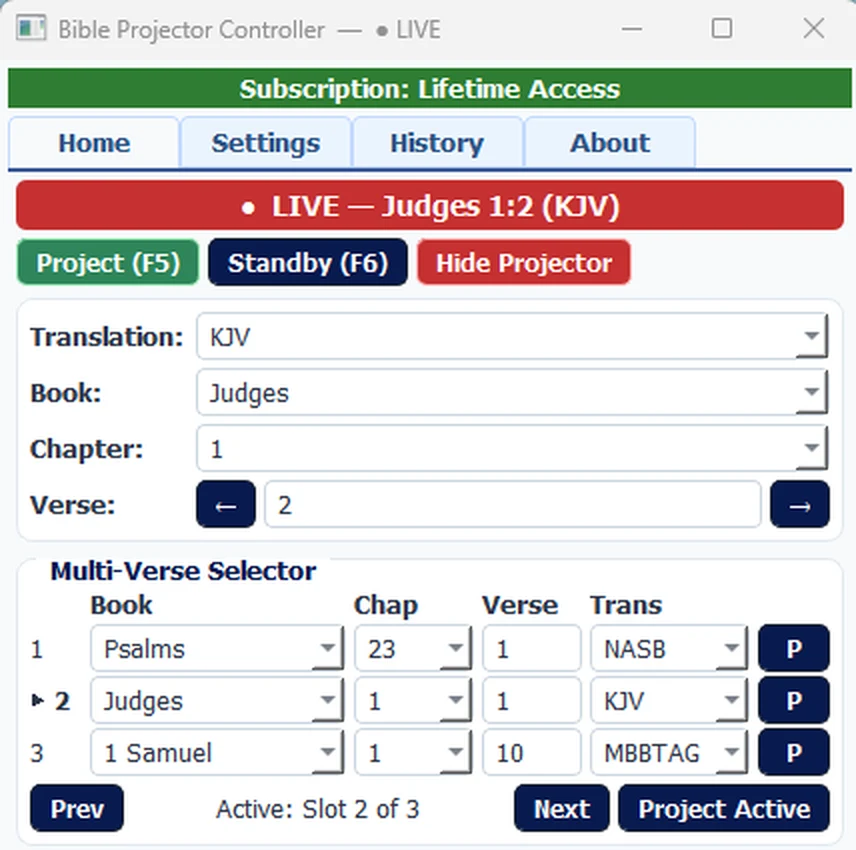
26+ Bible versions, and add your own
Switch between popular English and Filipino translations on the fly, or add any version you need from the settings.
Multi-screen support
Project to a second display or projector while you operate from a separate control panel.
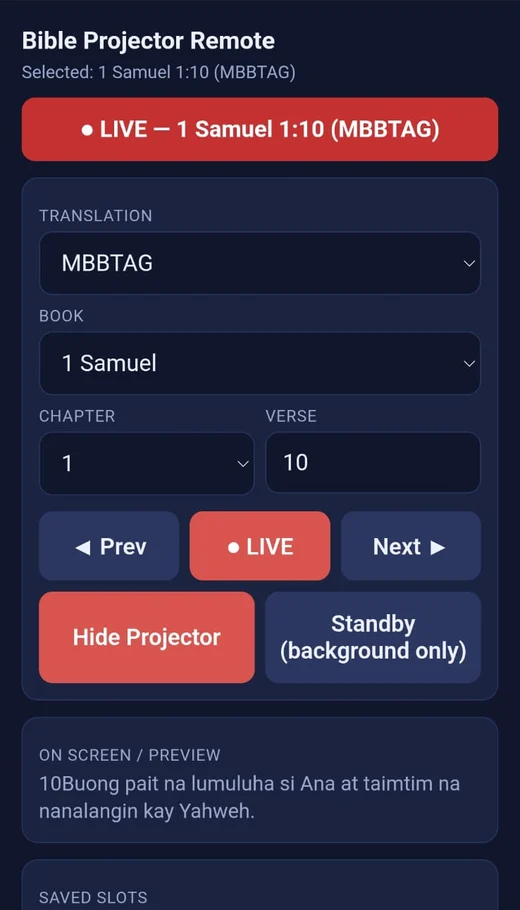
Phone & tablet remote
Scan a QR code and change verses from your phone or tablet over the same Wi-Fi, protected by a PIN.
Backgrounds & themes
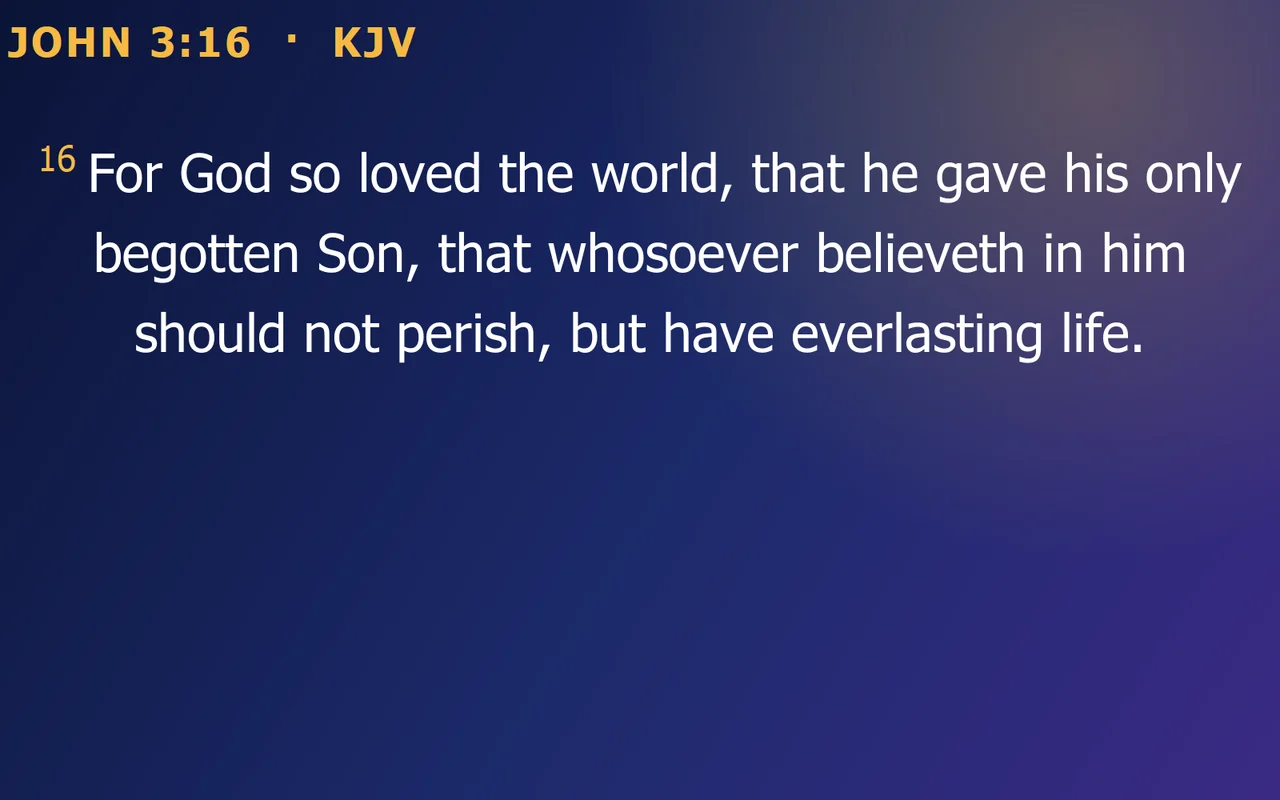
Choose a ready-made template, your own image or video, or a plain colour.
Text that always fits
Auto-scale keeps long passages readable. Adjust font, size, colour, bold and alignment.
Favourites & history
Save the verses you reuse and jump back to anything you showed earlier.
Fast keyboard control
Project with F5, go to standby with F6, and step through verses with the arrow keys. Standby shows only your background between passages.
Multi-verse selector
Line up several passages ahead of time and move between them with a click, so the sermon never waits on a search.
Control the screen from anywhere in the room
Let the pastor, the singer or a helper change verses from a phone. There is nothing to install on the phone: it opens a control page in its browser.
Turn it on
In the app’s Settings, tick Enable remote control and choose a PIN (at least 4 characters).
Scan the QR code
The app shows a QR code and the address. Scan it with a phone or tablet that is on the same Wi-Fi as the computer.
Run the service
Pick the verse, tap Project, move with Prev / Next, or tap Standby. The phone always shows what is live.
- Several phones or tablets can connect at once, all staying in sync
- Protected by your PIN
- Works in any phone or tablet browser
- Clear LIVE / STANDBY / OFF status
- Your saved verse slots, one tap away
iPhone: in Safari, tap Share, then Add to Home Screen.
Android: in Chrome, tap the ⋮ menu, then Add to Home screen.
You get a Bible Projector Remote icon like any other app. The first time you open it, enter your PIN again. If your computer’s Wi-Fi address ever changes, add the shortcut again.
Only use remote control on a network you trust.
Bible Projector Remote
Selected: …Up and running in three steps
Download & install
Download the Windows installer and follow the steps. It installs just for you, with no administrator password needed. Prefer no install? A portable version is also available.
Verify your email
Create your account and type the 6-digit code we email you. Your 1-month free trial starts immediately, with every feature included.
Project the Word
Pick a book, chapter and verse, choose your look, then press F5. It’s that simple.
Free for a month. Then choose what suits you.
Your trial includes every feature. When it ends, pick a plan to keep going.
Yearly
Best value for regular use.
- All features
- Two months free versus monthly
Lifetime
For churches and organizations. One payment, own it forever.
- One-time payment
- Ideal for churches
For payment and renewals, message us on WhatsApp or email, or use the support options inside the app.
Questions, answered
How does the free trial work?
Register in the app with your email address and enter the 6-digit code we send you. Your 1-month free trial starts as soon as the email is verified, and it includes all features.
I didn’t receive my verification code.
Check your spam or junk folder first. In the verification window you can request a new code after a short wait. If it still doesn’t arrive, contact us and we’ll help.
Windows says “Windows protected your PC”. Is Bible Projector safe?
Windows shows this notice for apps that don’t have a paid digital signature yet and haven’t built up download history. It does not mean the app is harmful. To continue, click More info, then Run anyway.
Check your download. Only download Bible Projector from this website or our official GitHub releases page. To confirm your file is exactly the one we published, open PowerShell in the folder where you saved it and run:
Get-FileHash .\Bible.Projector.Setup.v2.5.1.exe -Algorithm SHA256
The result should match this SHA-256 checksum for Bible.Projector.Setup.v2.5.1.exe (the installer):
0773fdb77a55a9c925af13a6fbd3770c789a5517b7a48e48fb5e42a8a4a91213
If you downloaded the portable version, check Bible.Projector.v2.5.1.exe instead:
e95fdc30d32bcc6c0479666ac54afc7d1626cf092e43aa0d83d8983f688c000f
If it doesn’t match, don’t run the file, and contact us.
My browser says the file isn’t commonly downloaded, or deleted it
Browsers warn about files they haven’t seen many times before, and Bible Projector is new. The file is not harmful. You just have to tell the browser to keep it:
Microsoft Edge: press Ctrl + J to open Downloads. Next to the file, click the … (three dots) and choose Keep. In the next window, open the small arrow on the right-hand side of the Delete button and choose Keep anyway. Be careful to click the arrow itself, not the word Delete.
Google Chrome: press Ctrl + J, click the file’s ⋮ menu, and choose Keep (or Keep anyway).
Then open the file from your Downloads folder. Windows may then show “Windows protected your PC”: click More info, then Run anyway.
Still stuck? Contact us at [email protected] and we will help you install it.
How do I update to a new version?
From version 2.5.1, Bible Projector checks for updates a few seconds after it starts. When one is ready, it asks you, then downloads it, checks that the file is genuine, installs it and reopens by itself. You can also click Check for updates on the About tab. If you have an older version, install the latest one from this page once. After that, updates are automatic.
Do I have to sign in every time?
No. Bible Projector keeps you signed in on that computer until you press Log Out in the app. Each account can be signed in on up to 3 computers. To free a slot, press Log Out on a computer you no longer use.
Which Bible versions are included?
More than 26 versions, including KJV, NKJV, NIV, ESV, NLT, NASB, AMP and several Filipino translations. You can also add other versions yourself from the settings.
Can I control it from my phone?
Yes. Tick “Enable remote control” in the app’s settings and choose a PIN. Then scan the QR code shown there with a phone or tablet on the same Wi-Fi network as the computer. It opens in the phone’s browser, so nothing needs to be installed.
Can more than one person connect to the remote at the same time?
Yes. Any number of phones or tablets can connect using the same PIN, and each one shows the same live status, refreshed every few seconds. Commands are handled one at a time, so if two people tap at once the latest tap wins.
How do I pay or renew?
Contact us by WhatsApp or email and we’ll arrange your plan. You can also reach support from inside the app.
Ready to serve your congregation better?
Download Bible Projector and start your free one-month trial today.
Download for Windows (v2.5.1)